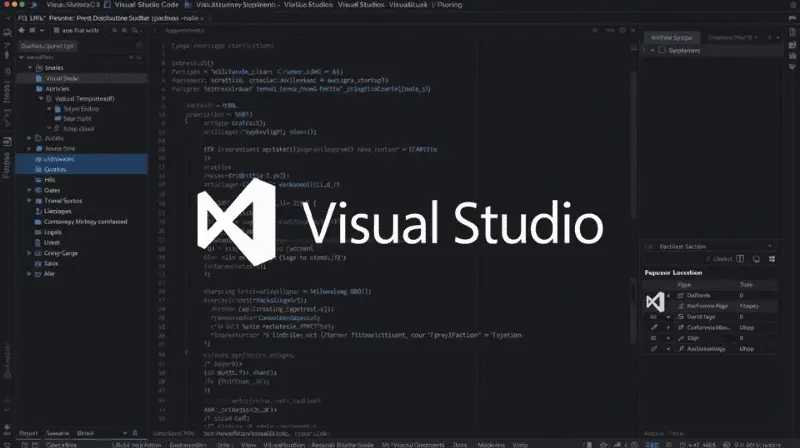
01 Visual Studio Code
VS Code has been the dominant editor for years, and it is ranking on the best top 5 code editor in 2026 is secure due to its relentless innovation.
Why it’s Top in 2026
Deep AI Integration (GitHub Copilot) Copilot is no longer just an extension; it’s becoming a core part of the VS Code experience. Expect AI to handle more complex refactoring, generate entire feature blocks from comments, and offer profound, context-aware debugging suggestions. Its extension marketplace is vast. Whatever new framework, language, or tool emerges in 2026, VS Code will have a high-quality extension for it on day one.
- Performance & Web Version: Microsoft continues to optimize performance, especially for large monorepos. The vscode.dev web version is becoming more powerful, enabling lightweight editing from any browser, seamlessly tying into GitHub Code spaces.
- Best For:Almost everyone web developers, data scientists, DevOps engineers, and It’s the default choice for a reason. VS Code’s extension marketplace is unparalleled.
- Why it’s special: Whatever technology stack you use, there’s a high-quality extension that integrates it deeply into VS Code.
Built-in Git Integration
Git is not an afterthought – it’s core to the experience:
Powerful Debugging Experience
Features include:
- Breakpoints, watch expressions, call stack
- Interactive debugging console
- Support for multiple languages and runtime.
- The debugging capabilities rival full IDEs.
Multi-language Support Out of the Box
VS Code understands many languages immediately:
- JavaScript/Type Script (excellent support)
- JSON, CSS, HTML
- Markdown with live preview
- Python, Java, C++
- And many more…
02: Sublime Text
Why It’s Different From Others
Sublime Text stands out for its raw performance and minimalist philosophy. Here’s what makes it truly unique that is why it comes on Best top 5 code editor in 2026.
- Unmatched Speed and Performance Sublime Text is built in C++ and is famously blazing fast.
- Instant startup Opens in under 2 seconds, even with large files.
- Buttery smooth scrolling with millions of lines of code.
- Minimal memory usage compared to Electron-based editors.
- No lag when working with gigantic files (100MB+).
Multiple Selections The Killer Feature
Sublime’s multiple cursor system is legendary
- Change variable names across multiple lines simultaneously.
- Edit HTML tags in multiple places at once.
- Transform data formats quickly.
- No unnecessary toolbars or panels.
- Focus on your code, not the editor chrome.
- Full-screen mode that truly removes distractions.
- Everything is configured via simple JSON files.
- Version control your settings easily, quick to modify.
Performance Champion
- Fastest editor for opening and searching large code bases.
- Low memory footprint ideal for older machines or resource constrained environments.
- No background processes slowing you down.
Features
- Search across entire directories instantly.
- Preserve case option.
- Regex with full preview.
Command Palette Ecosystem
- Ctrl+Shift+P gives access to every feature.
- Change syntax highlighting.
- Install packages.
- Modify settings.
- Run build systems.
- “Free to Try” Model.
- Unlimited evaluation period.
- Single license covers all machines you own.
- No subscription required.
03 IntelliJ IDEA
If you are thinking about app development this Intellij Idea relate on Best top 5 code editor in 2026.
Deep Code Understanding & Intelligent Code Completion
This is IntelliJ IDEA’s crown jewel. It’s not just about guessing what you’re typing; it’s about understanding the context and semantics of your code.
Why it’s special: It feels like the IDE is reading your mind, significantly reducing the cognitive load of remembering method names and APIs.
Advanced Refactoring
- Extract Method: Turn code blocks into methods with proper parameters.
- Change Signature: Modify method parameters across all usages.
- Inline: Replace method calls with the actual method content.
- Extract Interface/Class: Create abstractions from existing implementations.
- Real Impact: You can confidently make architectural changes across large code base without breaking anything.

Framework-Specific Intelligence
IntelliJ IDEA doesn’t just understand Java it understands the frameworks you’re using.
Built-in Tools & Integrations
- Visual Git integration: See changes, resolve conflicts, and commit without leaving the IDE.
- Git blame annotations: See who wrote each line of code directly in the editor.
- Shelving: Temporarily set aside changes without committing.
Database Tools
- Connect to databases directly from the IDE.
- Write and execute SQL with full code completion.
- Visualize table relationships and data.
- Terminal and SSH.
- Integrated terminal within the IDE.
- SSH session management.
- Docker container integration.
Code Analysis and Inspections
IntelliJ IDEA constantly analyzes your code in the background
Instant Navigation
- Ctrl+Click: Go to any class, method, or variable definition.
- Ctrl+B: Go to declaration.
- Ctrl+Alt+B: Go to implementations.
- Ctrl+Shift+F: Search across entire project.
- Keymaps: Choose from Eclipse, VS Code, or custom key bindings.
- Plugins: Massive ecosystem for additional languages and tools.
- Live Templates: Code snippets for common patterns.
- Themes: Complete UI customization.
Perfect For:
- Enterprise Java developers(Spring, Jakarta EE, MicroProfile).
- Android developers(the basis for Android Studio).
- Full-stack developersworking with multiple technologies.
- Teamsneeding consistent development environments.
- Large codebaseswhere code intelligence pays off.
04 Vim / Neovim
This is Vim’s most famous and distinctive feature that changes how you interact with text forever.
Why it’s revolutionary: Your fingers never leave the home row. You stop “pointing and clicking” and start “commanding and composing.”
The Vim Language Compositional Commands
Vim commands follow a verb-motion-noun structure that creates a language for text manipulation.
Basic Grammar:
- The Magic: These commands are compos able you can mix and match to create powerful editing sequences.
- Motions and Text Objects – Precision Navigation.
- Vim treats text as structured objects, not just characters.
Macros Automate Repetitive Editing
Vim macros let you record and replay any sequence of commands.
Registers Multiple Clipboards Vim has multiple clipboards (registers) for different purposes.
Power: You can store multiple snippets and paste them as needed without overwriting your main clipboard.
Command-Line Power Vim’s command mode provides incredible batch operations.

Famous Commands
Example: Add semicolons to JavaScript lines: 7. Window and Buffer Management
Vim’s split-screen workflow is incredibly efficient.
Dot Command Repeat Last Change
The Command is deceptively simple but incredibly powerful.
Magic: The dot command remembers your last insert-mode change and repeats it.
Modern Neovim Enhancements
While traditional Vim is powerful, Neovim adds famous modern features
LSP (Language Server Protocol) Integration
Tree-sitter Integration
- Better syntax highlighting.
- Structural understanding of code.
- Smart text objects based on AST.
The “Vim is Everywhere” Advantage
- Built into terminals: vim, viavailable on virtually all Unix systems.
- SSH sessions: Edit files on remote servers seamlessly.
- Other tools: Vim keybindings in browsers (Vimium), IDEs, even Slack.
- Muscle memory: Once learned, the efficiency gains transfer everywhere.
Perfect For:
- Terminal power users and sysadmins.
- Developers working on remote servers.
- Anyone wanting maximum editing efficiency.
- Programmers who hate touching the mouse.
- Those who work with large code bases.
-
Challenging For
- Beginners(steep learning curve).
- Those who prefer GUI-driven workflows.
- Developers needing complex debugger integration.
- Teams where not everyone uses Vim.
05 Note Pad++
It is old and light weight that is why it ranks on Best top 5 code editor in 2026.
- The Most Famous Feature Notepad++ is incredibly fast and lightweight.
- Instant startup Opens in under 2 seconds.
- Tiny memory footprint Uses 10-50MB vs hundreds of MB for modern editors.
- Handles massive files Can open 1GB+ files without crashing.
- No lag– Responsive even on older hardware.
- Why it’s famous When you just need to edit text quickly, nothing beats its raw speed.
Notepad++ popularized tabbed editing for lightweight editors.
Syntax Highlighting for 80+ Languages
- Notepad++ understands virtually every programming language.
- Supported languages: Python, JavaScript, Java, C++, HTML, CSS, PHP, SQL, XML, JSON, and dozens more.
Encoding Conversion & Line Ending Support
Notepad++ is famous for fixing encoding problems that break other editors.
Most Famous Encoding Features:
- Convert between encodings– UTF-8, ANSI, Unicode, etc.
- Fix broken characters– Handle files with wrong encoding.
- Line ending conversion– Windows (CRLF) ↔ Unix (LF) ↔ Mac (CR).
- Character set support– Chinese, Japanese, Arabic, etc.
- Famous scenario: “This file looks like gibberish in other editors, but Notepad++ displays it correctly.”
Session Management & Auto-Save Famous Session Features:
- Remember all open files– Close and reopen with everything restored.
- Periodic backup– Auto-save every X minutes.
- Snapshot backup– Save backup copies of modified files.
- Workspace saving– Save different project setups.
- Why users love it: Your editing context is preserved between sessions.
Most Famous Plugins:
- Compare– Visual file comparison (like Diff).
- JSON Viewer– Format and validate JSON.
- NPPExport– Export to RTF/HTML/PDF.
- TextFX– Classic text manipulation tools.
- FTP Synchronize– Edit remote files directly.
- Plugin Manager: Easy one-click installation from within Notepad++.
Famous Built-in Utilities
- Code Folding– Collapse/expand code blocks.
- Function List– Navigate functions in large files.
- Line Operations:
- Ctrl+I– Split lines.
- Ctrl+J– Join lines.
- Ctrl+D– Duplicate lines.
- Ctrl+L– Delete lines.
- Bookmarks– Ctrl+F2 to toggle, F2 to navigate.
- Zoom– Ctrl+Mouse Wheel for quick zooming.
To know more about us please visit our official website